 SideMini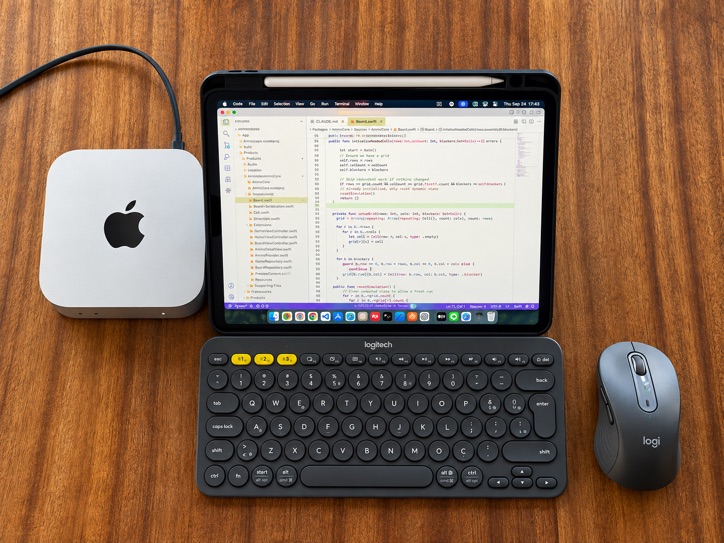
What you get
- The Mac starts with no monitor and the iPad becomes its screen, every time, untouched.
- If the iPad is asleep or locked, waking it is enough. SideMini keeps waiting in the background rather than giving up.
- Your resolution and layout are remembered and applied again on every connection.
- Plug a real monitor back in and SideMini steps aside. Unplug it and the iPad takes over again.
What you need
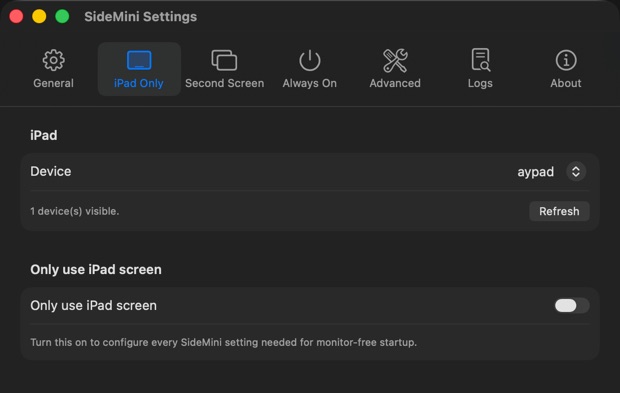
An Apple silicon Mac and a Sidecar-compatible iPad on macOS 14 or later, signed in to the same Apple Account with two-factor authentication. The iPad has to be unlocked once, for the first pairing.
Do the setup while a monitor is still attached. A USB cable is optional but makes the connection faster and keeps the iPad charged. On the iPad, set Auto-Lock to Never while it serves as your display.
Before you rely on it
- Unplug the monitor while the Mac is running. The iPad should take over within seconds.
- Restart with the monitor unplugged, then wake the iPad and wait about fifteen seconds.
- Keep a monitor or Screen Sharing available as a way back in.
Questions
Does this work on a Mac Studio?
Yes. Any Mac without a built-in display works the same way, including Mac Studio and Mac Pro.
What happens if the iPad is asleep at boot?
It keeps waiting, so the Mac is ready the moment you wake the iPad.
Can I still plug a monitor in sometimes?
Yes. SideMini stands aside while a monitor is attached, and takes over again when you unplug it.