 SideMini
What you get
- The iPad is beside your Mac at login, with nobody opening Screen Mirroring.
- Extended or mirrored, the resolution, the Sidebar: chosen once, reapplied every time.
- Cable pulled or connection dropped: it comes back on its own, about two seconds later.
- It is still Sidecar underneath, so Apple Pencil and Retina work as before.
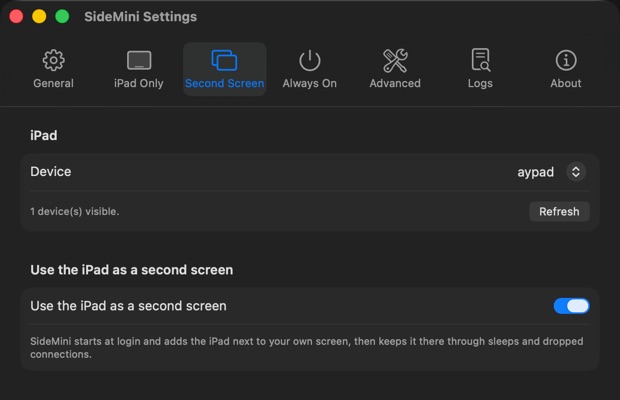
Setting it up
- Open Settings → Second Screen, pick your iPad and turn the switch on. That one switch sets everything else.
- Choose extend or mirror, and your resolution, under Advanced in the same tab.
- Log out and back in once to confirm it connects by itself.
What you need
An Apple silicon Mac and a Sidecar-compatible iPad on macOS 14 or later, signed in to the same Apple Account with two-factor authentication. A USB cable is optional; SideMini falls back to wireless by itself.
For a wireless connection, keep both devices nearby with Wi‑Fi, Bluetooth and Handoff on.
Questions
Does it work on a MacBook?
Yes, and that is the common case. The only-screen setup is for Macs without a display of their own.
Can I stop it connecting for a while?
Yes. Disconnect from the menu bar and it stays that way until you ask again.
Does it slow my Mac down?
No. Sidecar's own cost is the same whether you started it by hand or not.