Keep your Mac awake 24/7

Left alone, a Mac goes to sleep, and after a power cut it stays off until someone presses the button. That is fine for a laptop and useless for a machine running a model, a build or a media server. SideMini keeps a Mac mini, a Mac Studio or an old MacBook awake, reachable and able to recover on its own. It needs no iPad.

Download for macOS

Three days from first launch. No card, no account, nothing to cancel.

Already tried it? Buy for $9, once.

Three things macOS will not do by default

Stay awake. The idle timer sends the Mac to sleep whether or not anything is listening on the network.

Come back after a power cut. Out of the box the Mac stays off until a person presses the button.

Look normal over Screen Sharing. With no monitor attached macOS has nothing to render, so remote sessions arrive blank or at a useless size.

What SideMini sets

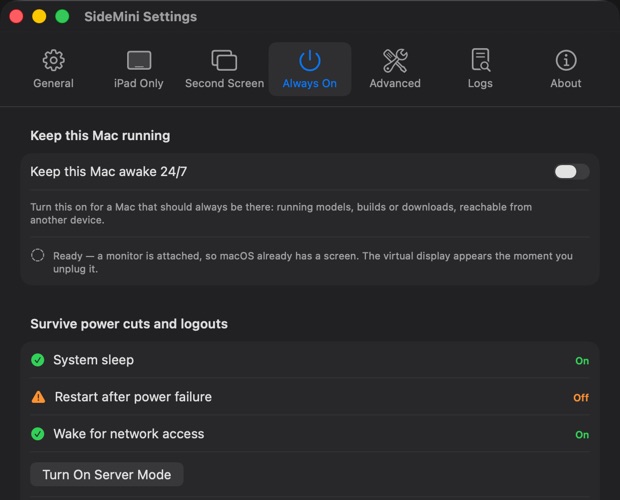
One switch holds the Mac awake for as long as the app runs, which is from login onward. That covers idle sleep and nothing else, because a power assertion dies with the process that holds it.

Server mode goes further and changes the Mac’s own energy settings, so it survives a crash, a logout and a power cut: never sleep, no disk spin-down, start up again after a power failure, wake for network access. It asks for your administrator password once and remembers your previous values so one click puts them back.

The virtual display gives macOS a screen to draw on in 1080p, 1440p or 4K, so Screen Sharing looks like a normal desktop with nothing in the HDMI port. It replaces the dummy plug most people buy for this.

A typical local-AI setup

  1. Install Ollama or LM Studio and confirm a model answers from a second device.
  2. Settings → Always On → turn on “Keep this Mac awake 24/7”, then Server mode.
  3. Pick a virtual display size, 1080p is plenty, and turn on Screen Sharing in macOS.
  4. Decide how the Mac reaches the desktop after a restart, then pull the power for a minute and confirm it comes back by itself.

Why not caffeinate

Because SideMini already does exactly what caffeinate does. Both call the same macOS power-assertion interface, and every assertion dies with the process holding it. Running caffeinate in the background adds a process to babysit and no extra guarantee, and it keeps the Mac awake after you quit the app, which nobody expects. Server mode is the setting that actually survives.

Questions

Do I need an iPad for this?

No. Server mode and the virtual display work on a Mac with nothing attached. Add an iPad later and it becomes the screen.

Will it keep the Mac awake with the lid closed?

On a laptop, macOS sleeps on lid close unless an external display and power are attached. Leave the lid open for a MacBook server.

Can I undo Server mode?

Yes. SideMini stores your previous energy settings and restores them in one click.

Does it stop the display sleeping too?

Only if you ask. Display sleep is separate and off by default, because a server does not need to burn a screen.

Keep reading