 SideMini
No monitor? Your Mac mini boots straight to your iPad.
Turn the Mac on and your iPad lights up with your desktop. No HDMI dummy plug, no Control Center, no clicks. Set it up once with a monitor attached; after that, just power on.
Free for 3 days · $9 once · No account · Notarized by Apple · Ready for macOS 27
Made up your mind? Buy for $9, once.
See the real thing
Open the iPad. There it is.
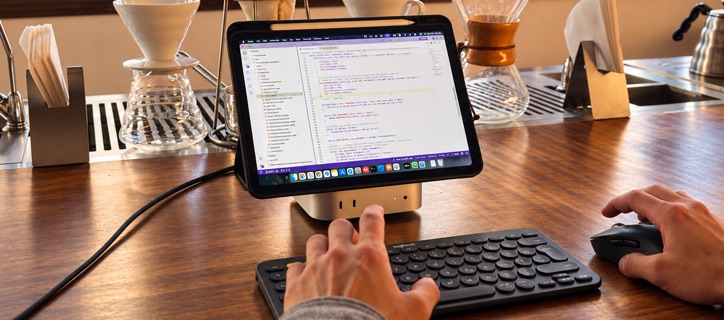
A Mac mini with no monitor, an iPad on a stand, a keyboard and a mouse. Forty seconds, start to finish.
Watch on YouTube →Choose your setup
One small app, three clear jobs.
SideMini was built first for a Mac mini with no monitor. The same automation can also add an iPad beside an existing screen or keep a Mac available as a server. Each setup is one switch in one settings window.
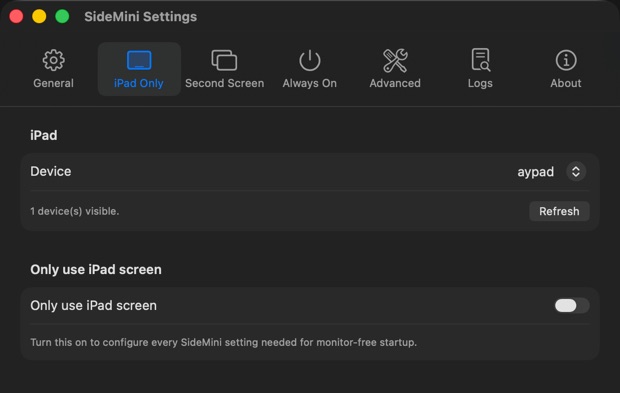
iPad as the only screen
Primary setupFor a Mac mini or Mac Studio with no monitor. Your iPad becomes the screen every time the Mac starts, and comes back whenever the link drops.
See the monitor-free setup →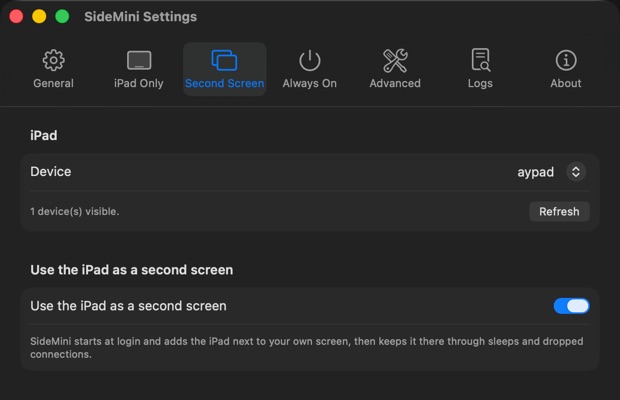
iPad as a second screen
MacBook · iMac · Mac miniKeep the screen you already have. SideMini adds the iPad at every login, extended or mirrored, with your chosen resolution.
See the second-screen setup →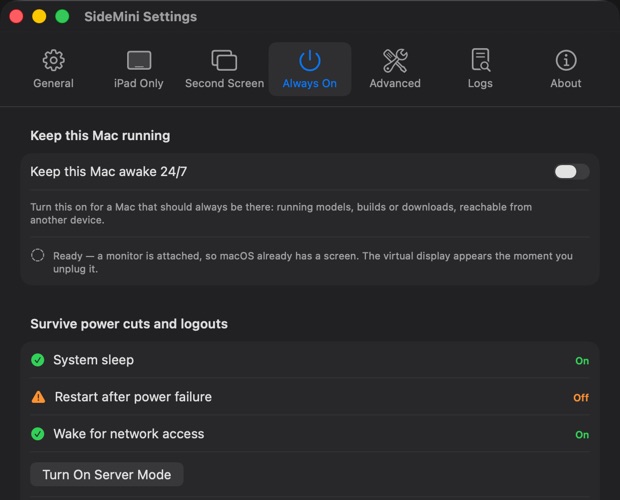
Always-on Mac server
No iPad requiredKeep a Mac awake, bring it back after a power cut, and get a sharp Screen Sharing picture at 1080p, 1440p or 4K.
See the server setup →Set up once
Three steps. The first two happen once.
Keep a monitor attached for the initial setup and test. Once the automatic behavior works, the monitor can go.
Install and choose your iPad
The welcome guide checks Sidecar, Wi‑Fi, Bluetooth and your Apple Account, then runs a test connection.
OnceTurn on iPad Only
One switch turns on start-at-login, automatic connection and reconnect.
OnceUnplug the monitor
Restart, wake or reconnect. SideMini waits for the iPad and restores the display without Control Center.
AutomaticThe useful six
Everything needed for the connection to stay boring.
The uncommon controls remain available in Settings. These are the features that matter every day.
Starts at login
Connects as soon as you log in, without opening Control Center.
Waits for the iPad
If the iPad is asleep, SideMini waits and connects the moment you wake it.
Reconnects after drops
Cable pulled or Wi‑Fi hiccup: the iPad is back in about two seconds.
Remembers the display
Resolution, sharpness, mirror or extend: chosen once, kept for every connection.
Nothing to plug in
Screen Sharing shows a sharp, normal desktop with no monitor or adapter attached.
No account or tracking
No sign-up, no analytics, no usage data. Your purchase is a key you paste once.
Before you download
What you need.
Try the full app free for three days with your own Mac and iPad.
What you need
- macOS 14 Sonoma or later and a Sidecar-compatible iPad.
- The same Apple Account with two-factor authentication.
- Wi‑Fi and Bluetooth on; USB is optional and recommended.
- A monitor for the first pairing and restart test.
Works with
Mac mini, Mac Studio, MacBook and iMac on macOS 14 Sonoma or later, macOS 27 included, and any iPad that supports Sidecar.
Which Macs and iPads work →Good to know
SideMini is signed and notarized by Apple and sold directly here, not through the Mac App Store. Every 1.x update is free.
Opening it the first time →Try the real setup
Three days free. Then $9 once.
The trial is the full app in all three setups. No card, no account and nothing to cancel. Test a real restart before you buy.
macOS 14 or later · signed and notarized
- All three setups
- Every 1.x update
- Two Macs you own
- Five-day refund if it does not fit your setup
Five useful answers
Before you rely on it.
More specific fixes live in Help.
Does it work with no monitor attached?
Yes. That is what it was made for. The iPad becomes the Mac’s screen with no monitor at all, and steps aside when you plug one in.
What if the iPad is asleep at boot?
SideMini waits. Wake the iPad and it connects within seconds.
Does it work on a MacBook or iMac?
Yes, on any Apple silicon Mac. On a Mac that already has a screen, SideMini adds the iPad as a second screen every time you log in.
Can I try it before I buy?
Yes. The full app is free for three days, with no card and no account. If you buy and it does not suit your setup, you have five days to ask for a refund.
Does the app send any data?
There is no account, no analytics and no usage tracking. SideMini checks your license and looks for updates now and then, and keeps working when you are offline. See the privacy policy.
Start with your situation
Three practical guides.
The full library is grouped by Sidecar, Macs without a monitor, and server topics.
How to use a Mac mini without a monitor
Every way to run a Mac mini with no screen attached, and the simplest one.
Read the guide → SidecarUse an iPad as a second monitor
Extend or mirror, cable or wireless, and how to make Sidecar reconnect itself.
Read the guide → Server & local AITurn a Mac into an always-on LLM server
Keep Ollama or LM Studio awake, reachable and usable without a monitor.
Read the guide →